![Transmural Platform [TMP]](https://www.telemonitoring-prescription.com/wp-content/uploads/2024/07/logo-tmprescription.png)
For Transmural Care Data Providers
Integration
Documentation
Global Architecture
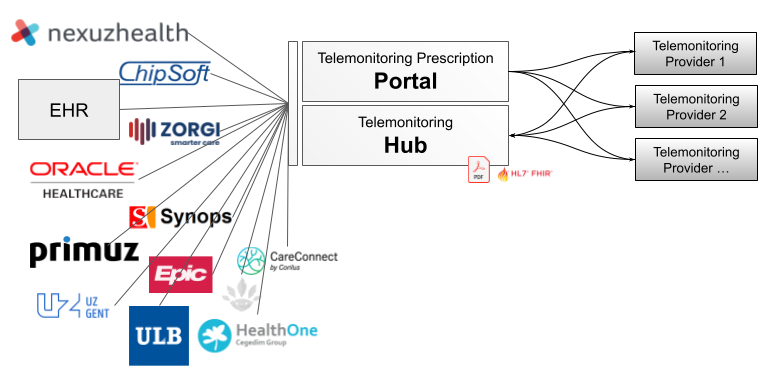
Context Integration

Context Integration is used to send EHR information to the Transmural Care Data Provider.
This is done through the Telemonitoring Prescription Portal and will send a prescription request to the provider via a JSON REST call.
The Telemonitoring Prescription Portal is used directly by the HCP via a User Interface.
Security
The communication between Portal and Provider happens through HTTPS calls. These calls are protected with authentication headers chosen by the Transmural Care Data Provider. The Transmural Care Data Provider chooses which fixed headers are set by the Provider and which are configurable by the hospital. This way a hospital can have multiple instances of Transmural Care Data Provider applications, defined by different custom headers.
The Prescription Request
The Prescription Request is triggered when a HCP clicks on the ‘prescribe’-button. At that moment TMP will execute a HTTPS POST request towards the Transmural Care Data Provider. An overview of the call made towards the Transmural Care Data Provider can be found in our OpenAPI specifications here.
When receiving this request as a Transmural Care Data Provider you have three options :
Option 1 : You have enough information and can confirm the request
in this case you return a status code 200, with an empty body
Option 2 : You need more information and can not confirm the request (yet)
You return a status code 200, body should contain a URI where you can fill in the missing information : { url : <https://...>}
Option 3 : You can’t confirm the request (because of any reason)
If you do not want to accept the request you should return a different status code, like 401 or 404.
You can include a message in the body to explain the reasoning : { message : 'DPA has not been signed yet' }
The Prescription Request End-Point
The above POST call will be send to a pre-defined end-point at the Providers side. If the Transmural Care Data Provider has separate end-points per Prescriber, for example because the service of the Transmural Care Data Provider is hosted within the prescribers environment, this is also supported by the Telemonitoring Hub. In that case the endpoint will be configured with the unique configuration enabling a Transmural Care Data Provider for a specific Prescriber.
As mentioned above in the Security section, each call towards the Transmural Care Data Provider can be secured with extra headers as defined by the Transmural Care Data Provider. These specific headers can either be configured to be the same for each call, regardless of the Prescriber, or be uniquely configured per Prescriber.
Outcome Integration
Authorization
All API calls towards the Telemonitoring HUB require an Authorization Header. The Transmural Care Data Provider will have to request a valid access_token based on the provided client and secret.
The API documentation for the Authorization call for Transmural Care Data Providers can be found here.
The client and secret are specific to a Transmural Care Data Provider. Requesting a client ID and secret can be done via support@telemonitoring-prescription.com, check out the I want to get started section at the bottom of this page.
Status Update
EHR’s can be kept up to date with the data you provide as a Transmural Care Data Provider. This is done by informing the Telemonitoring HUB with the needed information.
Keep in mind that informing the Telemonitoring HUB is only possible with the Telemonitoring ID. This ID is received during the request through Context Integration.
A Telemonitoring Session always has a status. The diagram below shows the possible statuses and the possible. transitions between those statuses. As Transmural Care Data Provider you are the owner of the status of each session. An HCP can request a status change though the Supported Actions (see later section).
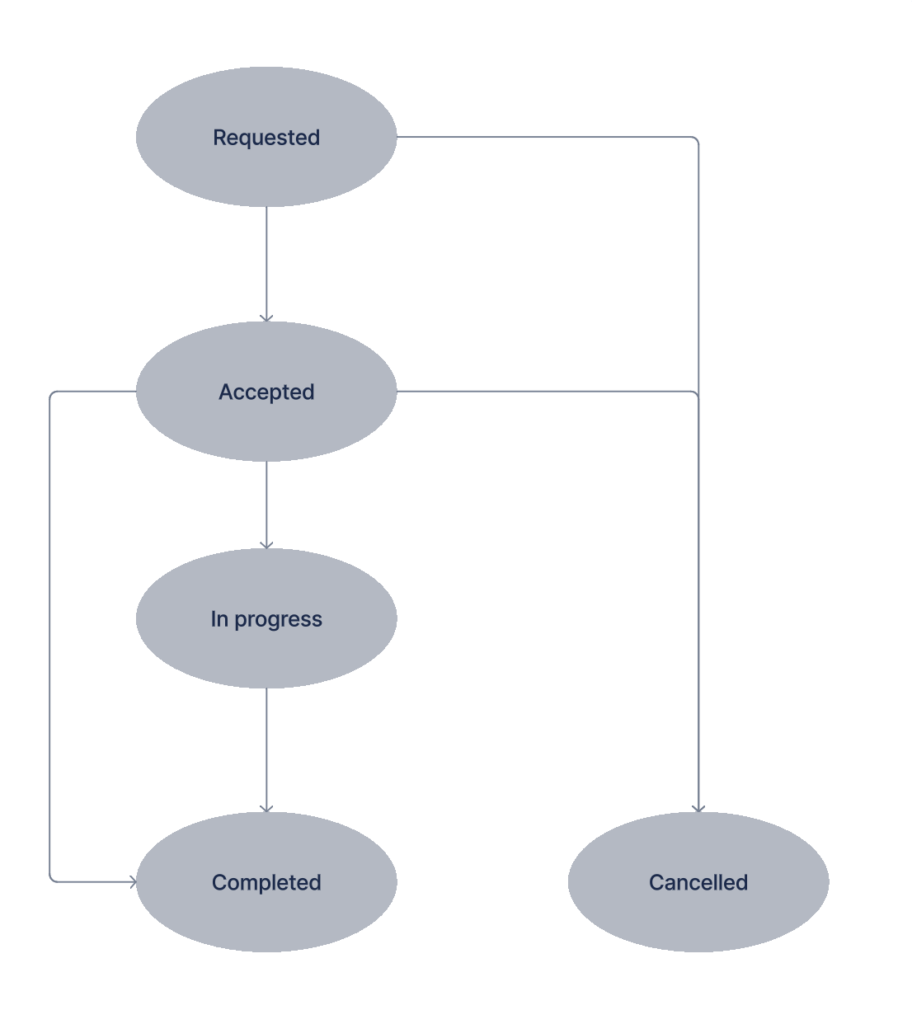
To update the status, the Transmural Care Data Provider has to do a HTTPS PUT call towards the Telemonitoring HUB.
The OpenAPI documentation can be found here.
An overview of the different statuses:
| Status | Transitions | Description |
|---|---|---|
| Requested | Initial state. | The Prescription Request is triggered when a HCP clicks on the ‘prescribe’-button. Each Telemonitoring session will initially be created in the status “Requested”. |
| Accepted | from Requested. | The Transmural Care Data Provider has to inform the Telemonitoring HUB when the session has been accepted. This means that all the necessary information for the Provider to be able to handle the order has been provided. |
| In-Progress | from Accepted. | The status ‘in-progress’ can be sent by the Transmural Care Data Provider to inform the EHR the Telemonitoring Session is ongoing and measurements or data relevant to the Telemonitoring Session is or can become available. |
| Completed | from Accepted or In-Progress. | When the Telemonitoring Session has ended a status update to “Completed” needs to happen. The EHR is in that way informed that no further data will become available on that specific telemonitoring ID. |
| Cancelled | from Requested or Accepted | “Cancelled” is a status if the HCP decided to cancel a Telemonitoring Session. This is done by the cancel action. Note, that for most Telemonitoring Sessions a cancel can only happen if there was no data measured and only if the Transmural Care Data Provider supports the ‘cancel’ action. |
| Stopped | from Accepted or In-Progress | “Stopped” is a status if the HCP decided to stop a Telemonitoring Session. This is done by the stop action. Note, that for a Telemonitoring Session a stop can only happen if the Transmural Care Data Provider supports the ‘stop’ action. |
Carepath HL7
During a status update call it’s possible as a Transmural Care Data Provider to inform the EHR about the carepath for which the Telemonitoring Prescription has been created via the carepath property. This carepath property can be passed along with any status update towards the Telemonitoring HUB and will be persisted with the corresponding telemonitoringId. This means that as a Transmural Care Data Provider you only have to pass the carepath once or you can also decide to pass it towards the Telemonitoring HUB with each update. The carepath is added by the provider when there is a link to a validated HL7 carepath. This link refers to to the HL7 implementation Guide.
Example carepath for Heartfailure can be found here (Telemonitoring Hub Identifier): https://build.fhir.org/ig/hl7-be/patient-monitoring/branches/main/heartfailure.html
Attachments
Type 1 : PDF
The PDF gives an overview of the Telemonitoring Session in a human readable format. This can be shared with the health hubs. Every PDF has a unique ID, which makes it possible for the EHR to know if an update to the same file occured. If you share multiple languages, you should add the contentLanguage attribute.
The Telemonitoring HUB does not import or read data in any way. The data remains on the side of the Telemonitoring Provider and it is up to the EHR to download the data. That means the HUB will only share metadata on the PDF.
Example of a PDF document :
{
  "id":"pdf",
  "name": "Telemonitoring Report",
  "etag":"f2fd2ddd34eebc9d039f5e693b95a61c",
  "contentMD5":"f2fd2ddd34eebc9d039f5e693b95a61c",
  "contentLength":255917,
  "contentType":"application/pdf",
  "lastModified":"2024-09-30T07:44:17.335Z",
  "contentLanguage":"nl",
  "uri":"https://xxx/pdf?token=0ba1b31c",
  "headers": {
     "X-Custom-Header": "HeaderValue"
  }
}
It’s highly recommended as a Transmural Care Data Provider to add MD5 hash and content Length to guarantee there is no data loss or corruption during download of the file by the EHR.
Type 2 : FHIR
Next to PDF, all carepath data that is sent through the Telemonitoring HUB requires a structured FHIR format as well so parsing, visualisation and re-use can be guaranteed. The FHIR format and definition is going through a fixed process, which you can see in the flow chart below.
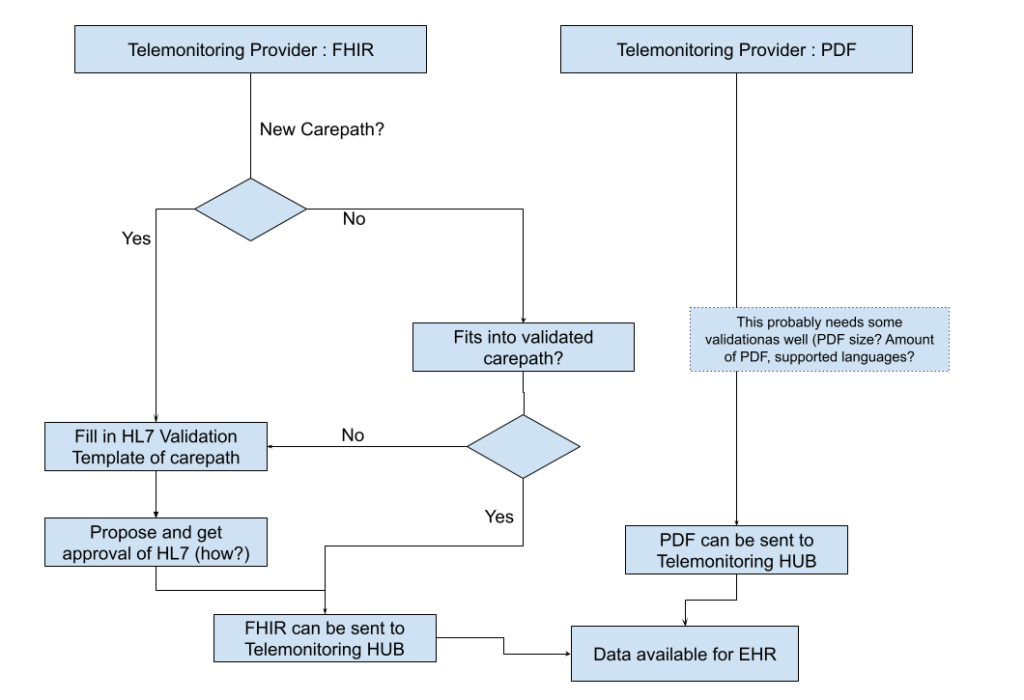
Example of the FHIR structure
{
  "id": "summary",
  "name": "Patient Observation"
  "contentType": "application/fhir+json",
  "contentMD5": "YWIzZGVmNA==",
  "contentLength": 120,
  "lastModified": "2023-09-02T12:30:00.000-05:00",
  "etag": "\"12345abc\"",
  "uri": "https://example.com/resource1",
  "headers": {
    "X-Custom-Header": "HeaderValue"
  }
}
Type 3 : Dashboard
The final Type is required when visualisation is needed and done by the Transmural Care Data Provider. This can be the case by specialized dashboard requirements (for example a neurologists dashboard to monitor and view multi modal signals). In this case a URI is shared that can be included and i-Framed by the EHR.
{
  "id": "customId2",
  "name": "Patient dashboard
  "contentType": "x-tm-dashboard",
  "uri": "https://example.com/dashboard",
  "headers": {
     "X-Dashboard-Header": "DashboardValue"
  }
}
Securing your data
As the Telemonitoring HUB acts as a gateway for metadata, but doesn’t store data the EHR needs to get data from the Transmural Care Data Provider in way that it is safe for the Telemonitoring Provider to not expose this data. There are several ways of doing this and as a Transmural Care Data Provider you are free to choose your way of working. Hereby some ways we’ve seen that might work for you.
Obscuring the URI :
This makes the URI impossible to guess, which guarantees that only the EHR can actually read this information.
Adding a prescriber specific token to the URI :
Adding a Token enables you to know what prescriber you’ve sent the data to and validate the correctness of the token. This gives you more control and information versus obscuring the URI.
Limiting in time (signed URI or temporary token) :
This makes the availability of the URI temporary and limits the security risk drastically.
Limiting in requests :
This guarantees a read only-once and so reduces the security risk.
Adding extra headers in the metadata of the HUB :
This URI requires extra authentication that needs to be added by the EHR before downloading. This functionality is currently not supported by the Telemonitoring Portal (so downloading of files with extra authentication will not work with the Telemonitoring Portal)
As an extra security measure some EHR’s will also use white-listing on DNS level and so will require the DNS where you store data on upfront. This will be requested by the Telemonitoring HUB during activation
Attachment Limitations
- There is currently a soft limit of 10 attachments (per API call, not per session)
- There can be multiple FHIR, PDF and Dashboard URI’s available for a Telemonitoring Prescription.
- Every FHIR, PDF and Dashboard are identified by a unique ID defined by the Transmural Care Data Provider.
- Every attachment should be made available. If it is out of the array in the webhook, the EHR can mark it as deleted.
Patient Authentication
As a Transmural Care Data Provider you might also want to allow the patients to directly communicate with your service. Being it via a mobile app or via your website. One way to do so is authenticate the patient via it’s SSIN, but that means that you’ll need to receive and safely store the SSIN of each patient if you really want to be secure and use Authentication tools like ItsMe.
With the Patient Authentication Token, TMP supports an alternative flow in which a unique token is genFor Transmural Care Data Providerserated which is linked with the launched Telemonitoring Session. When the Patient Authentication Token is enabled for the Transmural Care Data Provider and the Hospital has enabled it too, the unique Patient Authentication Token is send towards the EHR system together with the “Accepted” status update from the Transmural Care Data Provider. This token can be given to the patient by the HCP at that moment (see Patient Authentication Link for more information on how). Since the HCP is with the patient, the patient authentication is secure and only the patient knows the token. Later the patient can use this token to authenticate with the Transmural Care Data Provider.
The Transmural Care Data Provider can verify the received token with the Transmural Platform, the OpenAPI specifications of the verify call can be found here.
Patient Authentication Link
Together with the Patient Authentication Token, TMP can also configure a Patient Authentication URL which is a unique link towards the Transmural Care Data Provider including (if necessary) the telemonitoringId and token. This deep link can help patients to easily authenticate themselves with the Transmural Care Data Provider. For example by creating a deep link towards the mobile app of the Provider. With the unique Patient Authentication Token and TelemonitoringId in that link, the Provider can immediately authenticate and identify the patient from that deep link.
The TMP Portal will display a QR code with that Patient Authentication Link, this QR code can be shown or given to the patient for further authentication. Any EHR system can implement a similar solution.
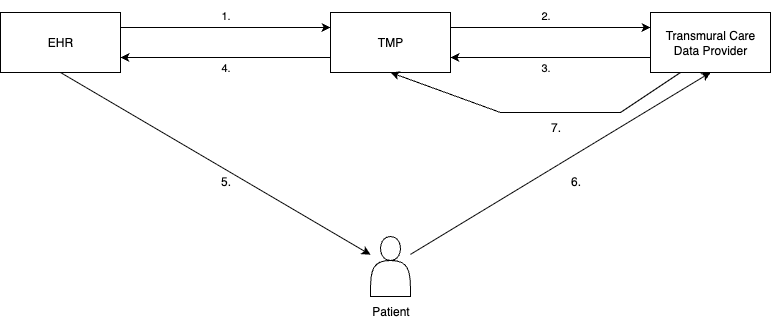
| 1. | HCP starts TMP Session, EHR system shares context towards TMP |
| 2. | HCP selects Provider and TMP shares relevant context towards the Transmural Care Data Provider |
| 3. | Provider accepts request (might happen only after asking for extra information from the HCP) |
| 4. | TMP informs EHR system that Provider accepted the request and includes unique Patient Authentication Token (and optionally Patient Authentication Link) |
| 5. | HCP gives Patient Authentication Token to Patient |
| 6. | Patient uses Patient Authentication Token to Authenticate with the Transmural Care Data Provider |
| 7. | Provider validates with TMP if the provided Patient Authentication Token and Telemonitoring Id are indeed linked and valid |
Dashboards
Transmural Care Data Providers who also support dashboarding for their customers can easily integrate with TMP to allow Healthcare Professionals to quickly and with single-sign-on open the Transmural Care Data Provider Dashboard.
To enable the Dashboard functionality, the Transmural Care Data Provider will have to support the unique endpoint on their site that TMP can call to fetch the relevant and authenticated dashboard url. When a HCP launches the dashboard, this endpoint will be called with the relevant and available data (PrescriberId, Responsible HCP (if available), Prescribing HCP (if available)) and TMP expects the authenticated dashboard url back and will redirect the HCP towards it.
More information about the API call which TMP does towards the Transmural Care Data Provider to fetch the authenticated url can be found here.
Supported Actions
If supported by the Transmural Care Data Provider and the EHR, an HCP can trigger actions towards the Telemonitoring Provider. Current supported actions by the Telemonitoring Prescription Portal are stop and cancel.
When the HCP triggers such an action, the Telemonitoring Prescription Portal will trigger the Transmural Care Data Provider via the given Action URI:
POST : Action URI webhook
HEADERS : { headers as defined by the Provider }
BODY :
{
  telemonitoringId: 'xxx',
  prescriber: {
     id: '...'
  },
  action: 'stop' or 'cancel'
}
It is up to the Transmural Care Data Provider to adjust the status of the Telemonitoring Session according to your business rules and update the Telemonitoring HUB of the status change as described in the section on Status Updates.
I want to get started!
Are you ready to get going and want to get integrated into the Telemonitoring Portal and HUB?
Great! When you’ve implemented the Context and Outcome integration like described above we just need you to send us a bit of information and we will configure you as a Transmural Care Data Provider.
What information do we need?
| Name | Transmural Care Data Provider Application Name |
| Provider | Transmural Care Data Provider Company Name |
| Description | Description available to the HCP |
| Carepaths | A list of carepaths defined by HL7 which you support, these carepaths allow one to select the right providers for their hospital. |
| Fields | A list of fields (of the available fields which you can find at the top of this page) that you as a provider would like to receive. |
| Supported Actions | [‘stop’, ‘cancel’] : do you support one of these action items? |
| Headers | What headers do you expect the Telemonitoring HUB to include when requesting you? |
| Prescriber specific Headers | What (custom) headers can be filled in by the hospital when configuring / activating you in the portal? |
| URI | What is the URI the HUB can POST to when triggering a new Telemonitoring Prescription. The Telemonitoring Hub also supports Providers who would have a unique URL per Prescriber. |
| Action URI | What is the URI the HUB can POST to when triggering a new Telemonitoring Action |
| Enable Patient Authentication Token | In case you want to enable Patient Authentication via a unique token |
| Patient Authentication URI | A URI which allows the patient to authenticate against using the telemonitoringId and unique Patient Authentication Token. This URI can contain both using the placeholder {telemonitoringId} and {patientAuthenticationToken}. If this URI is provided, the TMP Portal will show a QR Code which points to this URI which a Patient can use to Authenticate against the Transmural Care Data Provider. |
Once we got this information we’ll set you up as soon as possible and activate an environment for you where you can test the whole flow. After that we can set you up in production.