![Transmural Platform [TMP]](https://www.telemonitoring-prescription.com/wp-content/uploads/2024/07/logo-tmprescription.png)
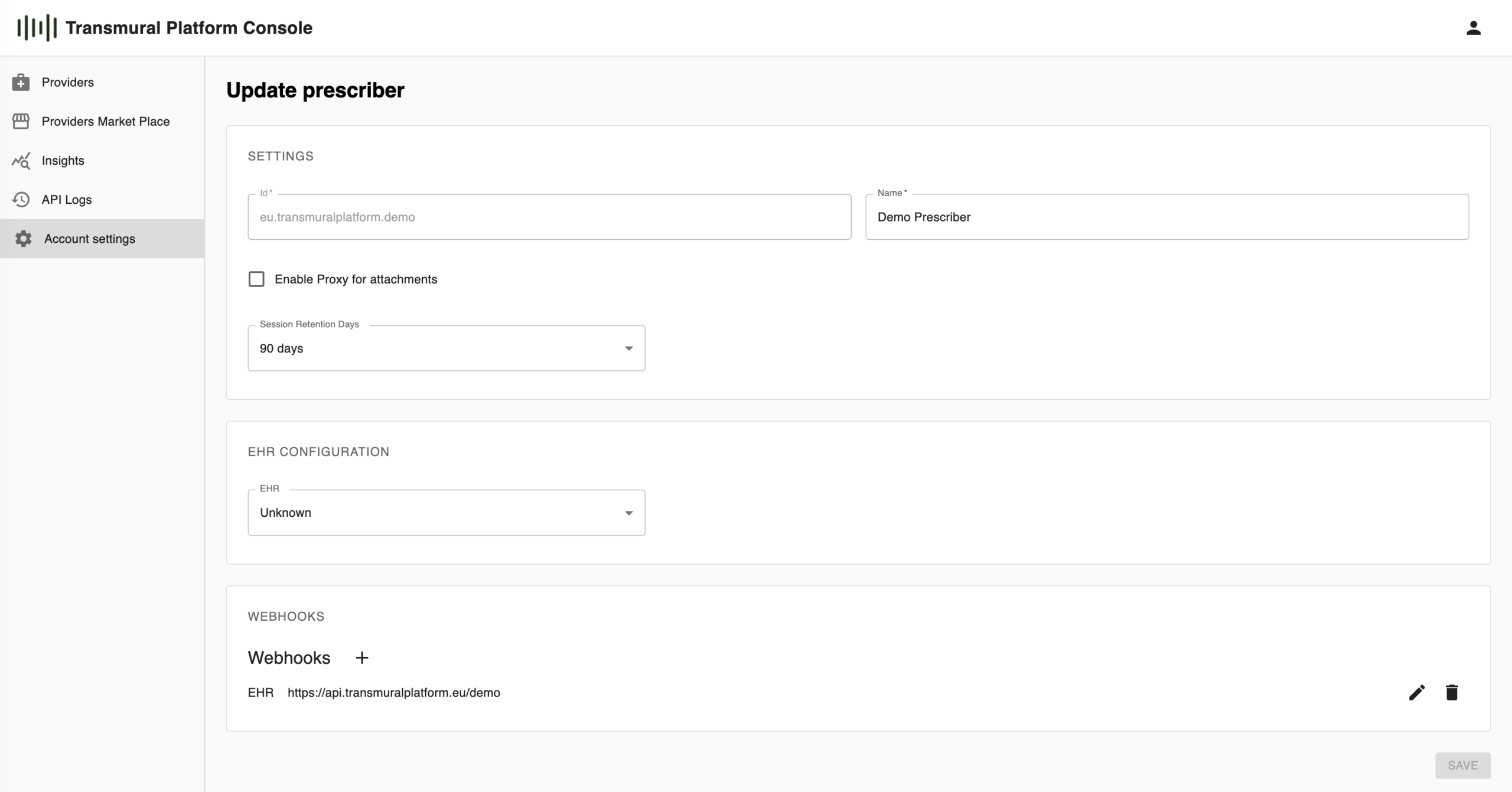
We are excited to announce a new feature now available in the Transmural Platform Console: Account Settings for Prescriber Administrators. This addition gives hospital administrators direct control over their organisation’s configuration — from basic identity settings to EHR integration and webhook management — all from a single, dedicated screen.
Why Self-Service Configuration Matters
Healthcare organisations connected to the Transmural Platform each operate with their own EHR system, their own care workflows, and their own integration requirements. Until now, adjusting these settings required coordination with the TMP support team. With the new Account Settings feature, administrators can manage their own configuration independently, reducing friction and accelerating time-to-integration.
What Account Settings Includes
The Account Settings screen is available in the Transmural Platform Console under the Account settings navigation item. It is organised into three clearly separated sections.
Settings covers the foundational identity of your prescriber account. Here you can review your organisation’s unique identifier and display name, enable the Proxy for Attachments option — which routes attachments through the TMP infrastructure rather than directly between systems — and configure Session Retention Days, determining how long telemonitoring sessions remain accessible before they are automatically archived.
EHR Configuration allows you to specify which Electronic Health Record system your organisation is using. Selecting the correct EHR ensures the Transmural Platform applies the right integration behaviour when processing inbound and outbound data flows.
Webhooks gives administrators full lifecycle management over the webhook endpoints registered for their organisation. You can add new webhooks, edit existing ones, or remove endpoints that are no longer in use — all without requiring developer intervention.
Adding and Managing Webhooks
The webhook management interface has been designed to be straightforward yet flexible enough to cover a range of integration scenarios.
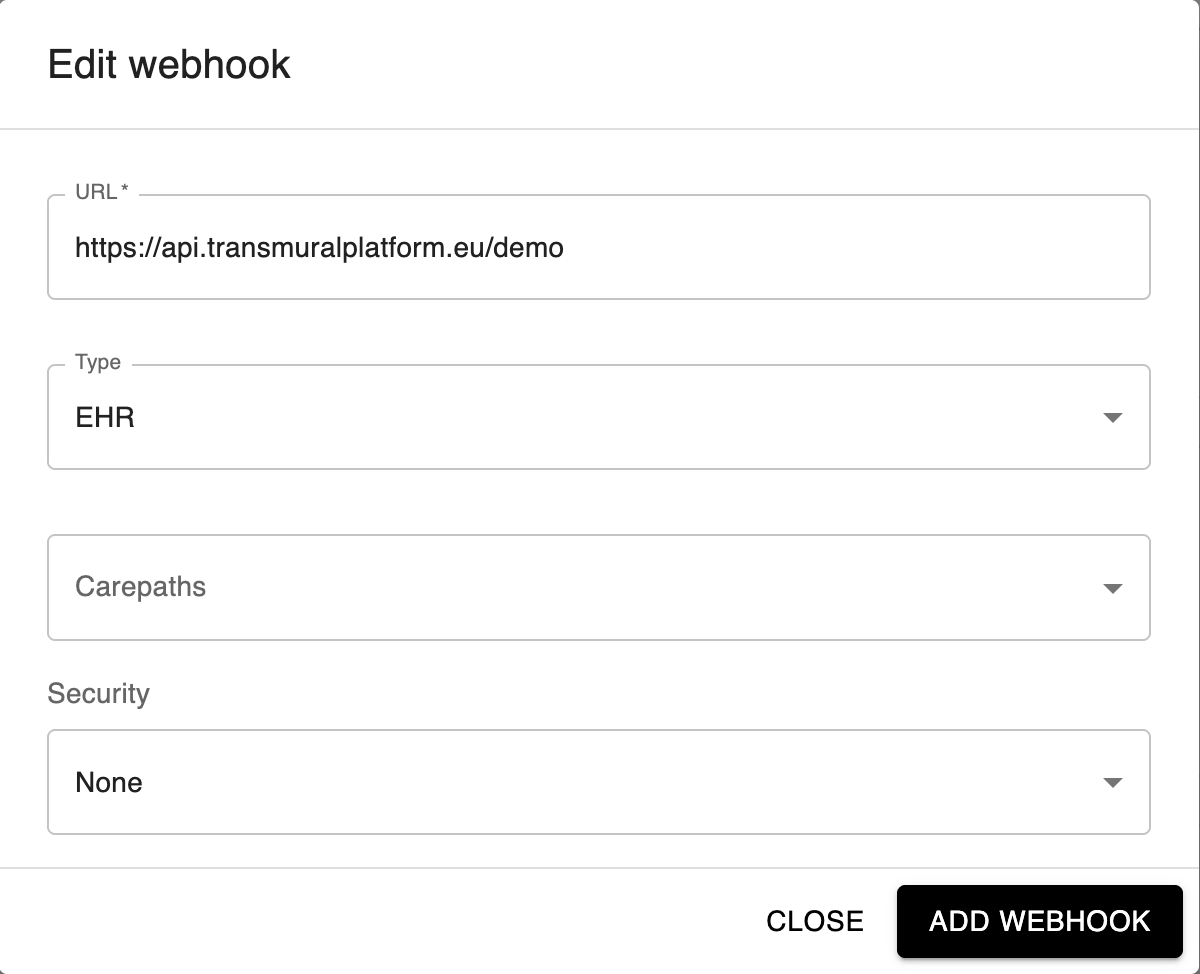
When adding a new webhook, you start by providing the target URL and selecting the Type. Two types are currently supported:
EHR
EHR webhooks are used to push telemonitoring data back into your Electronic Health Record system. When a Transmural Care Data Provider sends monitoring results, TMP forwards the relevant data to this endpoint, closing the loop between the external provider and your internal clinical systems.
Virtual Ward
Virtual Ward webhooks serve a different purpose. When a Transmural Care Data Provider accepts a session, TMP immediately shares the patient information with the configured Virtual Ward endpoint. From that point on, the Virtual Ward also receives all subsequent data returned by the Transmural Care Data Provider for that patient. This makes it possible to build a live virtual ward environment where patient status is continuously updated as telemonitoring data flows in.
Carepaths
The optional Carepaths field acts as a whitelist. When one or more carepaths are specified, the webhook will only be triggered for sessions belonging to those carepaths. Leaving the field empty means the webhook applies across all carepaths. This scoping mechanism is particularly useful for organisations running multiple telemonitoring programmes, where different endpoints or downstream systems are responsible for different care workflows.
Security
Security is a required consideration for any production webhook, and TMP currently supports three mechanisms:
- mTLS — Mutual TLS authentication, where you upload a client certificate (.crt) and the corresponding private key file. TMP will present this certificate when calling your endpoint, ensuring both sides of the connection are verified.
- Service Account — A Google JSON service account file is used to obtain an OAuth2 access token via the standard Google token exchange flow. The resulting bearer token is included in the outgoing request. This option is well suited for endpoints hosted on Google Cloud infrastructure.
- Authorization Header — A straightforward option where you define the exact value to be sent as the Authorization header on each webhook call. This covers a broad range of token-based or API key schemes without requiring additional infrastructure.
For internal or sandboxed environments, None remains available as a security option.
Existing webhooks are listed directly on the Account Settings screen, showing the type and endpoint URL at a glance. Each entry includes edit and delete actions, so keeping your webhook configuration up to date is a matter of seconds.
Getting Started
The Account Settings feature is available now in the Transmural Platform Console. Navigate to Account settings in the left-hand menu to get started. No additional setup is required — the screen reflects your current configuration as soon as you open it.
If you have questions or would like a walkthrough, feel free to reach out to the Transmural Platform support team via support@transmuralplatform.eu or visit www.transmuralplatform.eu.